Section 1: The Lead Export Protocol (Bypassing Fragile Browser Scrapers)
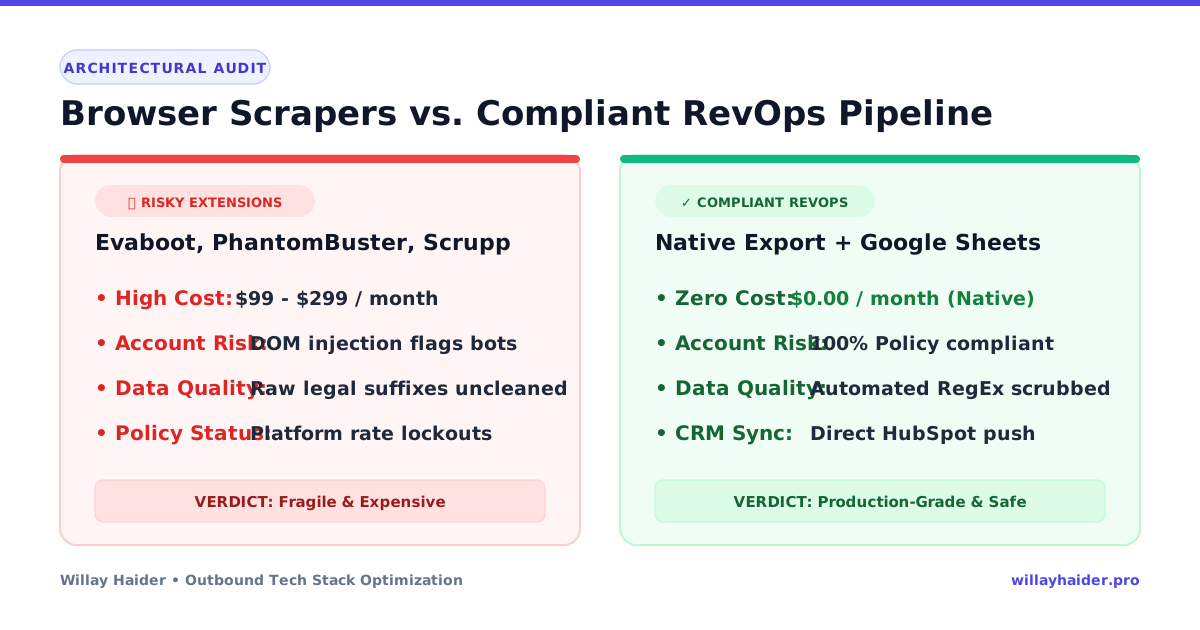
Most outbound SDRs and growth teams are spending an estimated $99-$299 per month on Chrome plugins like Evaboot, PhantomBuster, and Scrupp simply to be able to export their LinkedIn Sales Navigator searches to CSV.
In addition to the subscription fee, browser plugins developed by third-parties present legitimate risks of operation and security. Plugins directly inject scripts into your browser's DOM, creating weird network traffic that will trigger rate limits, CAPTCHAs, and even account locks.
With the construction of an ethical and honest email list building process, you preserve your account's health while removing all the extra SaaS subscription stuff.
Ethical Lead List Configuration Protocol:
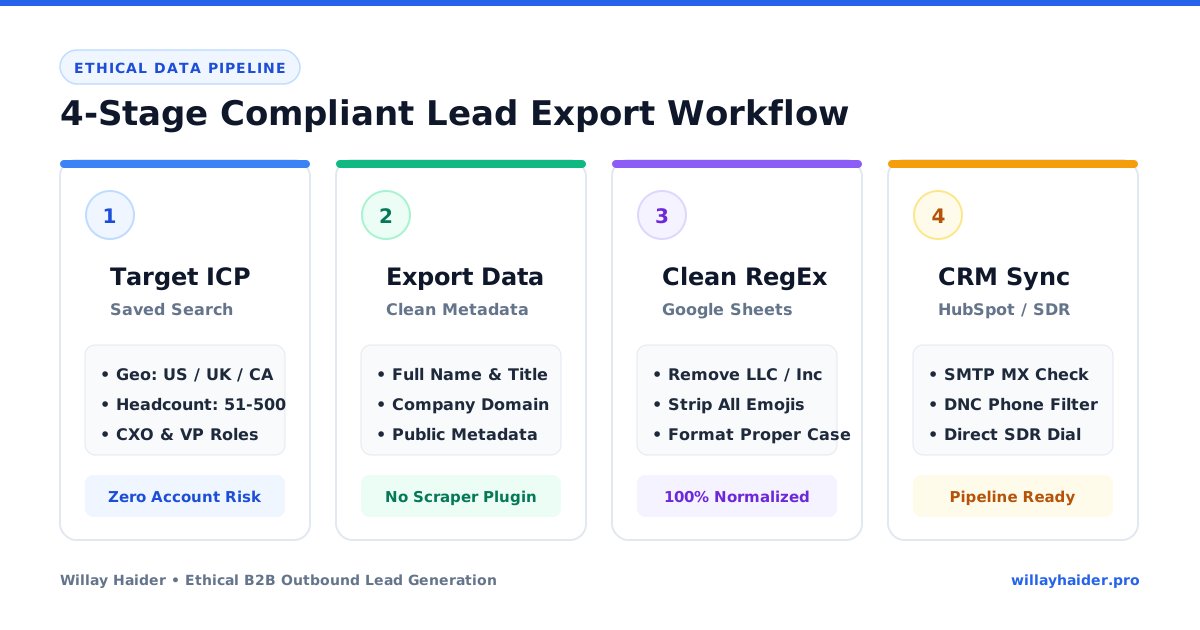
- Log into your LinkedIn Sales Navigator workspace.
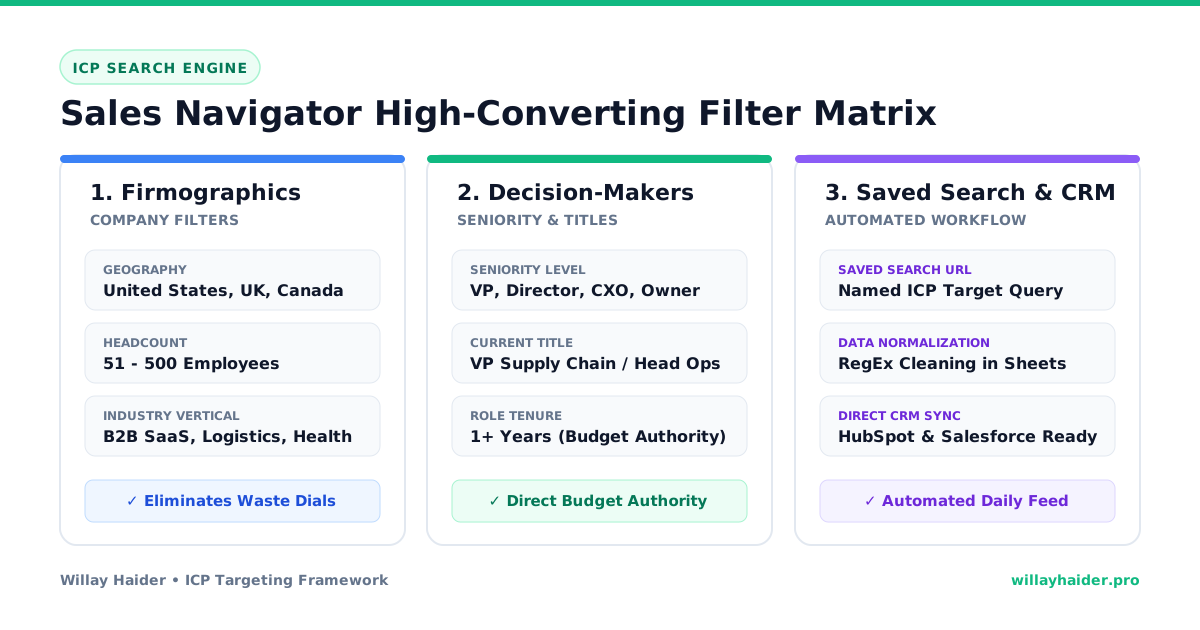
- Build an Ideal Customer Profile (ICP) search using specific firmographic filters (Geography, Company Headcount, Industry, and Seniority Level).
- Save your targeted search query as an active Account List or Lead List.
- Use native export and reporting features or structured cloud data pipelines to pull public company metadata, decision-maker titles, and verified corporate domains.
- Feed the structured records directly into your CRM or spreadsheet workspace for automated normalization.
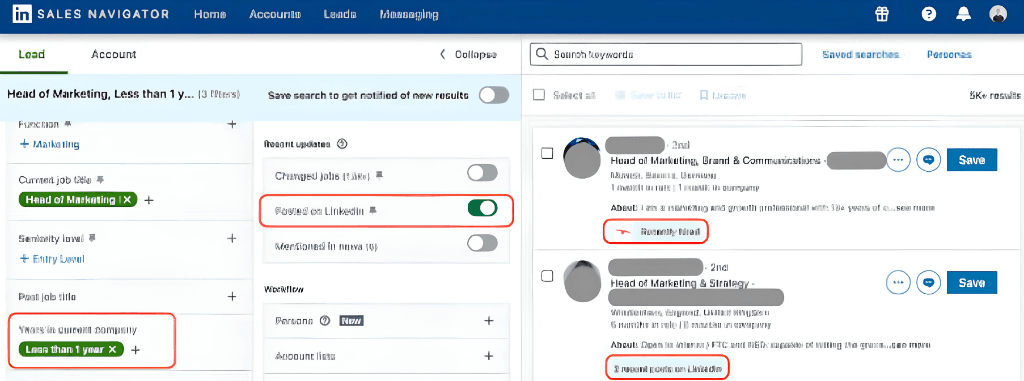
When building your search, targeting high-intent signals significantly increases conversion. For example, filtering for "Years in current company: Less than 1 year" alongside the spotlight filter "Posted on LinkedIn" surfaces newly hired decision-makers who have fresh budget authority and are actively engaging on the platform:
The Anti-Restriction Safety Guidelines
The best outbound platforms always ensure that their platform is hygienic in order to maintain their reputation within the domain as well as in their account:
- Volume Pacing: Maintain a sustainable prospecting pace of 75 to 100 targeted decision-makers per day.
- Data Integrity: Only prospect verified contacts that match your exact ICP parameters.
- Security Compliance: Avoid third-party browser extensions that access your browser cookies or inject unauthorized scripts into your session.
Section 2: The Automated Data Normalization Script
Raw company names from public profiles often contain legal suffixes ("Inc.", "LLC", "Ltd", "Corp", "GmbH") and promotional emojis that break cold email personalization tags and sound unnatural on cold calls.
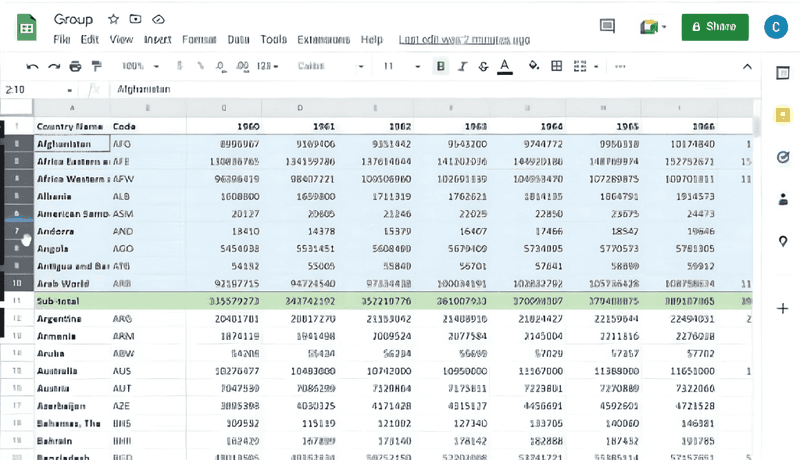
Once you pull the raw prospect metadata, organize the records in a structured Google Sheets workspace. Having dedicated columns makes it easy to run automated batch formulas and verify data integrity before pushing to CRM:
Automated Google Sheets Data Cleaning Formula
Apply this regular expression formula in your Google Sheets database to clean and title-case raw company strings automatically as new leads arrive:
=PROPER(REGEXREPLACE(A2, "(?i)\b(llc|inc|ltd|corp|co|gmbh|pvt)\b|\p{So}", ""))Formula Syntax Breakdown:
- `(?i)`: Case-insensitive flag matching uppercase, lowercase, and mixed cases.
- `\b(...)\b`: Word-boundary anchor preventing the accidental removal of letters inside standard company names (e.g., "Lincoln" will not lose "Inc").
- `\p{So}`: Unicode symbol category filter that strips decorative icons and emojis.
- `PROPER()`: Converts the cleaned business name into clean title case for outbound sequences.
Standard Outbound Webhook JSON Schema
When routing exported prospect records between spreadsheets or workflow automations in Make.com or n8n, use this standardized JSON structure:
{
  "event": "lead_ingested",
  "source": "sales_nav_verified",
  "timestamp": "2026-08-27T15:00:00Z",
  "lead_data": {
    "profile_url": "{{step_1.profile_url}}",
    "full_name": "{{step_1.full_name}}",
    "cleaned_company": "{{step_1.company_name}}",
    "title": "{{step_1.job_title}}",
    "location": "{{step_1.geo_location}}"
  }
}
In live enterprise campaigns, having a standardized data schema prevents broken variables and ensures your SDRs always have accurate context before initiating cold outreach.
Section 3: Database Verification & Multi-Channel Handoff
Clean data extraction is only the foundation. Before routing prospect records into live calling cadences or email sequences, contacts must pass through verification and deliverability gates.
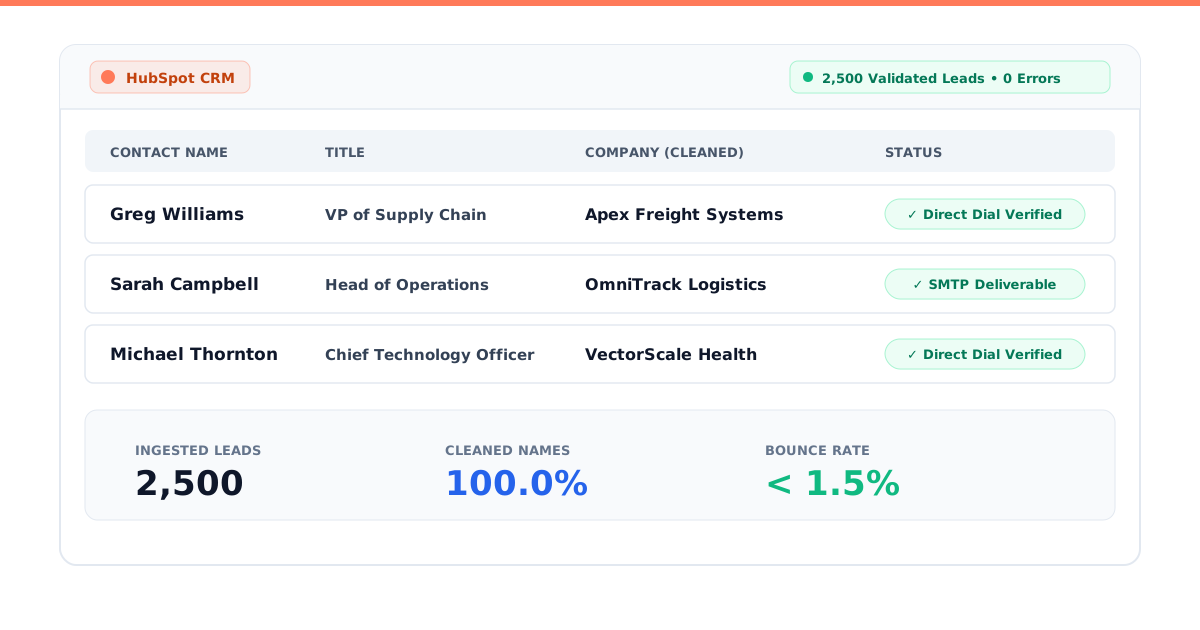
HubSpot CRM Property Mapping Architecture
Map your incoming lead dataset into these native and custom HubSpot CRM contact properties:
| Incoming Webhook Key | Target HubSpot CRM Property | Field Type |
|---|---|---|
lead_data.full_name | First Name / Last Name | Single-line text (Split by space) |
lead_data.title | Job Title | Single-line text |
lead_data.cleaned_company | Company Name | Single-line text |
lead_data.profile_url | LinkedIn Profile URL | Single-line text |
lead_data.location | City / State / Country | Single-line text |
source | Lead Source (Sales_Nav_Verified) | Single-line text / Tag |
The Conditional Routing Gate
To protect domain reputation and keep SDRs focused on high-probability opportunities, apply these three conditional rules before enrolling contacts into sequences:
- Condition 1: Contact property
Lead SourceequalsSales_Nav_Verified. - Condition 2: Contact property
Email Verification FlagequalsTrue(validated via ZeroBounce or NeverBounce). - Condition 3: Contact property
Direct Phone Numberis known and validated against national DNC registries.
Only records passing all three conditional rules are passed into active multi-channel outbound phone and email sequences. For complete multi-channel cadence design, review our guides on Cold Calling vs. Cold Email for B2B Lead Generation: Channel Comparison & Hybrid Cadence and HubSpot Workflows for Outbound Sales Setup Guide. If you send cold emails, protect your sender score with our Sales Email Domain Warmup Guide.
When I built the outbound pipeline infrastructure for Million Dials Pvt Ltd., we paired this exact list normalization and CRM routing protocol with verified direct-dial sourcing on Apollo.io and unscripted discovery cadences. Over enterprise campaigns in healthcare procurement, logistics, and B2B SaaS, this system generated 1,800+ verified discovery demos booked and $2.5M+ in closed revenue with a 72% demo show-up rate. As an analytics professional holding the Google Data Analytics Professional Certificate and IBM Data Science Credentials, I make sure every lead engine is backed by verifiable data models and error-free API sync using proven appointment setting frameworks.
Frequently Asked Questions
How do I export leads from LinkedIn?
You can export 1st-degree connections directly from LinkedIn via Settings & Privacy -> Data Privacy -> Get a copy of your data -> Connections. For cold prospects in Sales Navigator, build saved search lists, export the structured metadata, and normalize the data in Google Sheets before syncing to your CRM.
Can I export leads from Sales Navigator to Excel?
Yes. Once your prospect list is organized in Google Sheets, click File -> Download -> Microsoft Excel (.xlsx) or Comma-separated values (.csv). You can also automate this flow using Excel 365 Web API connectors.
How to use Evaboot vs. custom free webhook scripts?
Evaboot is a third-party paid Chrome extension that charges per credit to scrape and clean Sales Navigator searches. A custom, ethical workflow using native list exports and Google Sheets RegEx formulas achieves clean, normalized data for free ($0/month) without browser extension vulnerabilities.
How to extract emails from LinkedIn Sales Navigator for free?
LinkedIn Sales Navigator does not expose direct email addresses in search results. To append verified work emails ethically:
- Export the prospect's full name, job title, and cleaned company domain.
- Route the data to a verified enrichment provider like Hunter.io or Apollo.
- Validate MX records and SMTP handshakes to ensure deliverability before launching cold email campaigns.
Does LinkedIn Sales Navigator provide email addresses and direct phone numbers?
No. LinkedIn Sales Navigator provides InMail messaging and profile insights, but does not provide direct business phone numbers or validated work emails. Outbound teams bridge this gap by connecting Sales Navigator search exports to verified enrichment databases like Apollo and ZoomInfo.
How to save a search and build an ideal customer profile (ICP) list?
In Sales Navigator:
- Apply granular filters: Geography (e.g., United States, United Kingdom), Headcount (e.g., 51-200), Seniority Level (e.g., VP, Director, C-Suite), and Function (e.g., Operations, Supply Chain, Revenue).
- Click Save Search at the top right of the search panel.
- Name your search query with the vertical and date (e.g.,
US_Logistics_VPs_Q3_2026). - Review the matched accounts to ensure high relevance before starting outreach.
How to sync LinkedIn leads with CRM without manual CSV exports?
Set up a webhook receiver in Zapier, Make, or a custom HTTP endpoint that listens for new lead events. Configure field mapping directly into HubSpot, Salesforce, or Zoho CRM, automatically tagging the record with Lead Source = Sales_Nav_Verified for immediate SDR follow-up.
Next Steps
If you want to talk through outbound strategy or need help setting up a clean pipeline, feel free to explore our approach or get in touch.