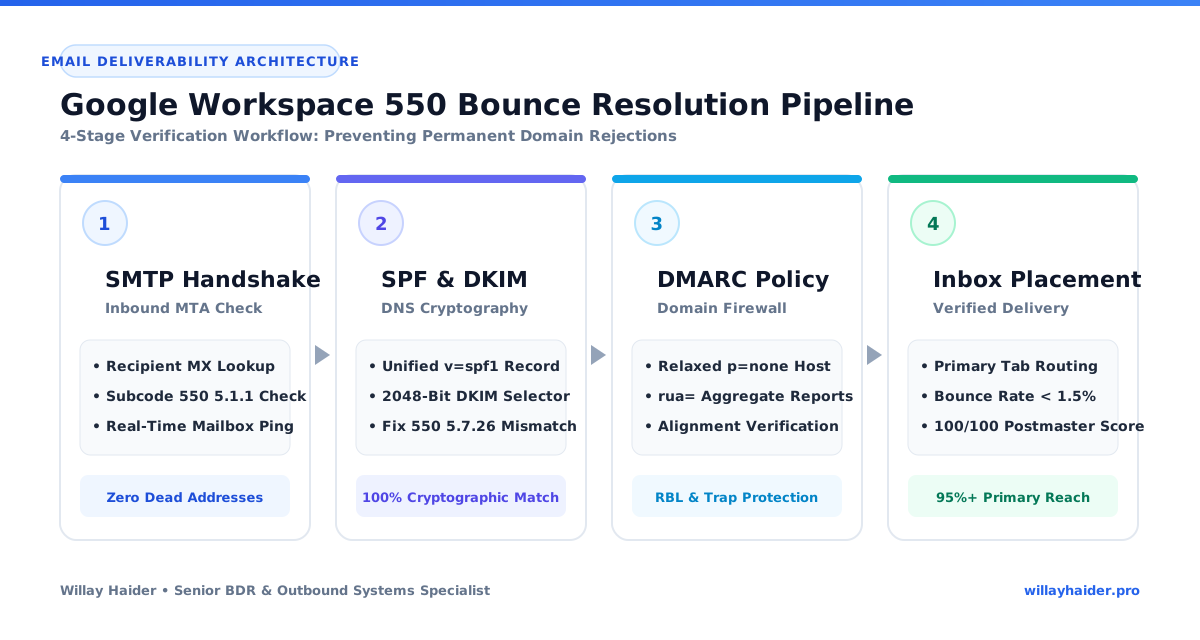
You launch an outbound sequence, check your dashboard twenty minutes later, and half your emails are bouncing back with a bright red status: 550 Permanent Failure.
Your first instinct might be to assume it is a temporary glitch and hit resend.
Do not do that.
An SMTP 550 error is not a temporary connection issue. It is a hard, permanent rejection from the recipient mail server. The receiving server looked at your email, found a critical problem, and refused to deliver it. Retrying those addresses over and over tells spam filters that you are blasting unverified lists or spoofing domains, which can ruin your sender reputation very quickly.
This is a practical guide on the reasons behind these 550 bounces in Google Workspace, what each subcode means, and how to rectify your DNS records and data pipeline to ensure your emails reliably reach the primary inbox.
What an SMTP 550 Permanent Failure Actually Means
In email protocols, status codes in the 400 range (like 421 or 451) are temporary soft bounces. They usually mean a server is busy, rate-limiting your connection, or temporarily greylisting your message. The sending server will automatically try delivering again later.
A 500-range code (like 550, 552, or 554) is a permanent hard bounce. The receiving server has made a final decision to reject the message, and no automatic retries will happen.
In Google Workspace, a 550 error almost always boils down to one of three root causes:
- Dead or Mistyped Contact Data: The recipient mailbox does not exist, was formatted incorrectly, or the prospect has left the organization.
- Broken DNS Authentication: Your domain is missing SPF, DKIM, or DMARC records, or the records fail alignment tests.
- Reputation or Blocklist Flags: Your domain or sending IP was flagged by public blocklists like Spamhaus or by internal Google/Microsoft filtering algorithms.
Diagnosing the 4 Most Common 550 Subcodes
With any bounced email that returns a 550 error, the bounce notification or server log usually includes an extended status subcode. That subcode tells you exactly what failed.
1. Error 550 5.1.1 (User Unknown / Mailbox Does Not Exist)
550 5.1.1 <alex@targetcompany.com>: Recipient address rejected: User unknown in virtual mailbox tableThis is purely a data quality issue. The receiving server exists and responded, but there is no active mailbox matching that prefix. This happens when reps guess email patterns or when prospect lists from tools like Apollo.io include outdated contacts.
The Fix: Never guess emails on live campaigns. Run every prospect list through a dedicated SMTP verification tool like NeverBounce or ZeroBounce before loading them into your sequencer.
2. Error 550 5.7.26 (Unauthenticated Sender / SPF and DKIM Failed)
550 5.7.26 This message does not have authentication information or fails to pass SPF/DKIM verification.
To best protect our users from spam, the message has been blocked.
Google and Yahoo enforce strict authentication standards for all senders. If your email lacks a valid cryptographic DKIM signature or your sending IP is not authorized in your SPF record, Google Workspace will reject the email outright.
The Fix: You need to add or update your SPF, DKIM, and DMARC TXT records in your DNS manager (Cloudflare, GoDaddy, Namecheap, etc.).
3. Error 550 5.7.1 (Service Unavailable / Spam & Blocklist Policy)
550 5.7.1 Service unavailable; Client host [XX.XX.XX.XX] blocked using Spamhaus ZEN;
Message rejected due to low domain reputation.
The receiving mail server checked your sending domain or IP against a public blacklist (like Spamhaus, Barracuda, or SpamCop) or an internal spam filter and decided your traffic looks dangerous.
The Fix: Pause all outbound sequences immediately. Use a lookup tool like MXToolbox to find which blacklist flagged you, resolve the underlying trigger (bad data or volume spikes), and submit a formal removal request.
4. Error 550 5.4.1 (Recipient Address Rejected on Microsoft 365)
550 5.4.1 Recipient address rejected: Access denied. AS(201806281) [mail.protection.outlook.com]This error is very common when prospecting into companies using Microsoft Exchange or Office 365. Microsoft's Directory Based Edge Blocking (DBEB) rejects messages before they hit the server if the user is not found in Microsoft Entra ID.
The Fix: Do not keep retrying this address. Flag it as dead in your CRM and move on to another verified contact at the account.
Public Blocklists vs. Private ISP Reputation
Understanding where your block originated determines how you resolve it:
| Attribute | Public RBLs (Spamhaus, Barracuda, SpamCop) | Private ISP Filters (Google Postmaster, Microsoft SNDS) |
|---|---|---|
| Visibility | Visible via public lookup on MXToolbox | Hidden from public view; tracked via private postmaster portals |
| Primary Trigger | Hitting spam trap honeypots or high spam complaint rates | User spam reports (>0.3%), sudden volume surges, low engagement |
| Resolution | Submit a formal delisting ticket on the carrier website | Pause volume, clean contact lists, re-warm inboxes gradually |
| Impact | Immediate rejection across multiple corporate mail filters | Gradual routing into spam folders before hard 550 rejections |
Safe Sending Limits and Daily Volume Caps
Exceeding provider thresholds is one of the fastest ways to trigger an automated sending restriction. Keep your volume calibrated against these practical operational benchmarks:
| Platform / Account Type | Official Provider Limit | Safe Cold Outbound Limit (Per Inbox) |
|---|---|---|
| Google Workspace (Standard) | 2,000 emails / 24 hours | 30 - 40 cold emails / day |
| Personal Gmail (@gmail.com) | 500 emails / 24 hours | 0 (Never use for cold sales) |
| Microsoft 365 (Exchange) | 10,000 recipients / day | 35 - 45 cold emails / day |
| Multi-Domain Warmup Inboxes | Dependent on engine | 20 - 30 warmup emails / day |
The DNS Security Fix: SPF, DKIM, and DMARC Configuration
If your 550 bounces are caused by authentication failures (550 5.7.26), here is how to get your DNS records aligned cleanly inside your domain manager (Cloudflare, Namecheap, GoDaddy, or Route 53).
Step 1: Merge Your SPF Records (Never Create Two)
A very common mistake is creating multiple SPF records for different tools (for example, one for Google Workspace and another for an email service like SendGrid or Mailgun).
Having more than one SPF record on a single domain is an automatic syntax failure. Receiving servers will fail the lookup and drop the email.
Instead, merge everything into one single TXT record on your root domain:
Host: @
Type: TXT
Value: v=spf1 include:_spf.google.com include:sendgrid.net ~all
Step 2: Generate and Activate 2048-Bit DKIM in Google Admin
DKIM adds a cryptographic signature to every email sent from your domain, proving the message was not modified in transit.
- Log in to your Google Workspace Admin Console.
- Go to Apps > Google Workspace > Gmail > Authenticate email.
- Select your domain and click Generate New Record (select 2048-bit key length).
- Go to your DNS provider (Cloudflare, Namecheap, GoDaddy) and add a new
TXTrecord:
Host: google._domainkey
Type: TXT
Value: v=DKIM1; k=rsa; p=MIIBIjANBgkqhkiG9w0BAQEFAAOCAQ8AMIIBCgKCAQEA...[YOUR_KEY]...DAQAB- Go back to Google Admin Console and click Start Authentication. Ensure the status shows that email authentication is actively running.
Step 3: Publish a Clean DMARC Record
DMARC tells recipient servers what to do if an incoming email fails SPF or DKIM checks. When correcting a failing domain, start with a relaxed monitoring policy (p=none) so you can receive diagnostic reports without blocking valid emails while DNS propagates:
Host: _dmarc
Type: TXT
Value: v=DMARC1; p=none; rua=mailto:dmarc-reports@yourdomain.com; pct=100
Data Cleansing and CRM Governance Workflows
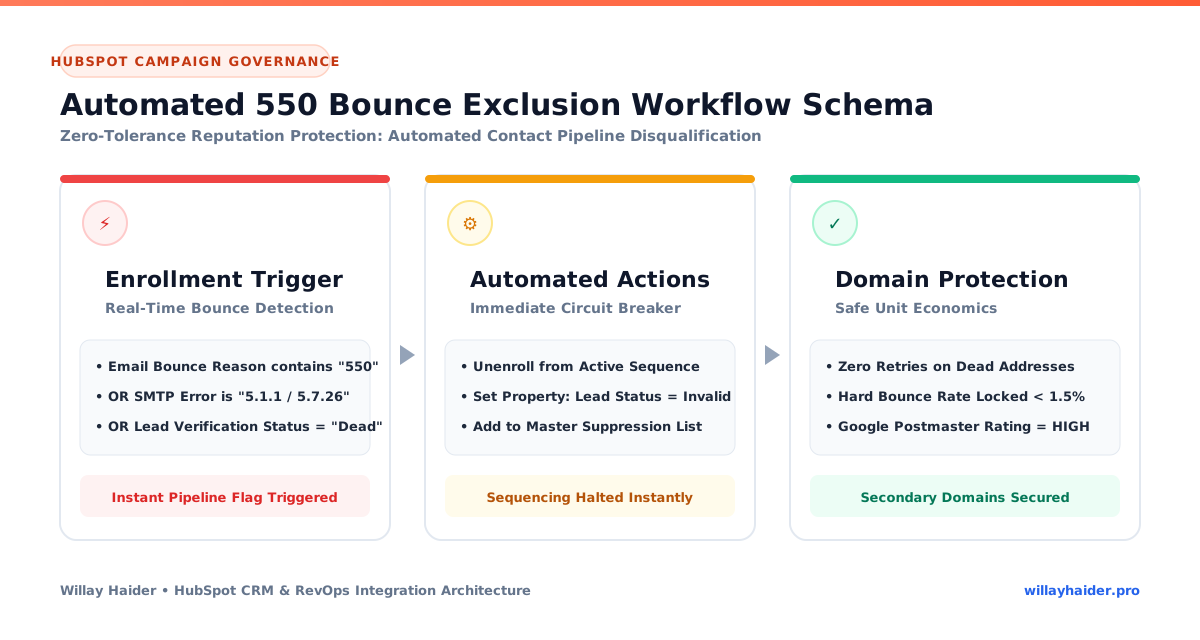
Fixing your DNS is only half the battle. If your CRM keeps feeding dead or unverified leads into your outbound sequencer, you will run right back into 550 errors.
Here is the operational checklist to keep bounce rates safely below Google's 2% threshold:
- Automate Bounced Lead Exclusion: Build a simple workflow in HubSpot or Salesforce. Whenever a contact returns a 550 hard bounce, automatically update their lead status to "Invalid" and remove them from all active cadences. Check out our step-by-step guide on HubSpot Workflows for Outbound Sales to see how we build this.
- Keep Sending Volume Realistic: While Google Workspace accounts can technically send up to 2,000 messages daily for regular business use, cold outreach requires restraint. Keep individual inboxes capped at 30 to 40 cold emails per day. If you need to send 200 emails a day, distribute the volume across five separate inboxes across secondary domains.
- Warm Up New Inboxes Gradually: If you are setting up new secondary domains for outbound, do not start blasting immediately. Run them through an inbox warmup schedule using tools like MailReach or Warmup Inbox for a few weeks to build a healthy sending baseline. We covered the complete walkthrough in our guide on How to Warm Up a New Sales Email Domain.
Step-by-Step Deliverability Recovery Protocol
When an inbox hits a 550 bounce block, follow this recovery roadmap:
- Step 1: Pause All Live Sequences. Stop automated queues on the affected domain immediately to avoid triggering further spam traps.
- Step 2: Run an RBL Blocklist Audit. Check your domain and sending IP on MXToolbox and Dmarcian.
- Step 3: Validate DNS Alignment. Ensure your SPF, DKIM, and DMARC records pass syntax and alignment validation tests.
- Step 4: Check Tracking Domain Security. Ensure your custom tracking link has an active SSL certificate (HTTPS). Unencrypted HTTP links trigger aggressive firewall blocks.
- Step 5: Delist Flagged IPs. If listed on Spamhaus or Barracuda, file an official delisting request explaining the corrective steps you took.
- Step 6: Purge Cold Prospect Lists. Run all pending lists through ZeroBounce or NeverBounce to remove dead addresses and spam traps.
- Step 7: Re-Warm Inboxes Gradually. Use peer-to-peer warmup tools to restore high engagement and healthy sending habits before resuming active campaigns.
Essential Deliverability and DNS Tooling
| Category | Recommended Platforms | Primary Use Case |
|---|---|---|
| DNS & DMARC Validation | MXToolbox, Dmarcian, EasyDMARC | SPF syntax testing, DMARC record generation, and RBL lookups |
| Real-Time Email Verification | ZeroBounce, NeverBounce, MillionVerifier | SMTP handshake testing, catch-all detection, and spam-trap removal |
| Inbox Warmup & Deliverability | MailReach, Warmup Inbox, Warmy | Seed testing, spam folder recovery, and automated peer engagement |
| Outbound Infrastructure Engines | Instantly, Smartlead, EmailBison | Multi-inbox rotation, unified inbox management, and sending distribution |
Frequently Asked Deliverability Questions
Can I have multiple SPF records on my domain?
No. Having more than one SPF TXT record invalidates your SPF configuration entirely. Mail servers will treat this as an authentication error. You must combine all authorized senders into a single v=spf1 string.
How long does it take for DNS changes to take effect?
There are some DNS hosts such as Cloudflare that perform local updates within minutes; however, global propagation can take anywhere from a few hours up to 24 to 48 hours before all receiving mail servers reflect the new records. Prior to resuming outreach campaigns, test your domain with an external tool like MXToolbox to confirm the changes are live worldwide.
Why are my emails going to spam even though SPF, DKIM, and DMARC all pass?
Authentication is merely a starting point to prove domain identity. Mailbox providers also evaluate content quality, domain age, engagement rate, and tracking pixels. If your email contains spam trigger words, broken links, or an unencrypted HTTP link for tracking, your email may still land in the spam folder.
What should I do if my sending IP is listed on Spamhaus or Barracuda?
First, halt all ongoing email campaigns to avoid creating any further automatic complaint signals. Second, run through your prospect list and eliminate unverified addresses. Third, check and verify your SPF, DKIM, and DMARC records. Finally, visit the website of the blacklist agency (such as Spamhaus or Barracuda) and fill out a delisting application detailing the corrective steps you took.
What is the difference between a 421 error and a 550 error?
A 421 code is a temporary restriction (greylisting or rate-limiting) where the receiving server asks you to try again later. A 550 code is a permanent refusal where the server will not accept the email under any circumstances. If you see 421 errors, slow down your sending speed to avoid turning rate limits into hard 550 blocks.
How do I stop dead emails from looping in my CRM?
Create a list or workflow trigger that detects any hard bounce event, immediately unenrolls the contact from your sequencing tool (Instantly, Smartlead, or EmailBison), and marks the contact record as non-marketable.
Need Help Fixing Your Outbound Deliverability?
If your sales team is dealing with deliverability bottlenecks, burned domains, or low meeting booking rates, we can help audit your infrastructure and build reliable outbound systems.
- Explore our Outbound Sales Services to see how we build scalable appointment setting pipelines.
- Check out our Verified Case Studies across tech, logistics, and healthcare.
- View our Pricing Tiers or learn more About My Approach.
- Ready to get your outbound engine running cleanly? Request a Proposal today.